WebGPU 计算着色器——图像直方图 Part 2
原文作者: webgpufundamentals Contributors
原文链接: https://webgpufundamentals.org/webgpu/lessons/webgpu-compute-shaders-histogram-part-2.html
在上一篇文章中,我们介绍了如何在 JavaScript 中制作图像直方图,然后将其转换为使用 WebGPU 并经历了几个优化步骤。
本文继续在此基础上做更多的事情。

一次性生成 4 个直方图
给定这样一张图片:

通常需要生成多个直方图:
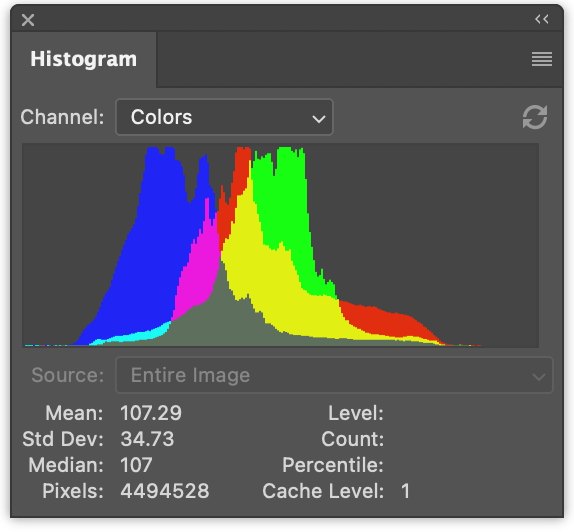
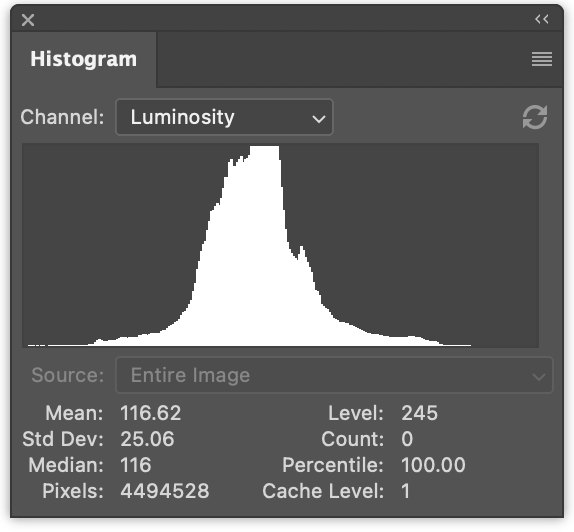
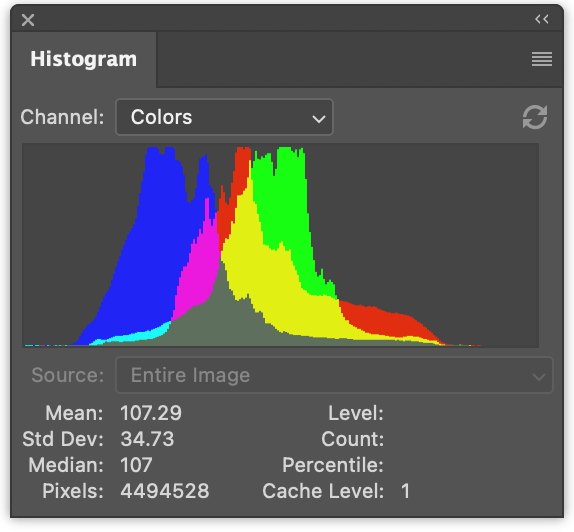
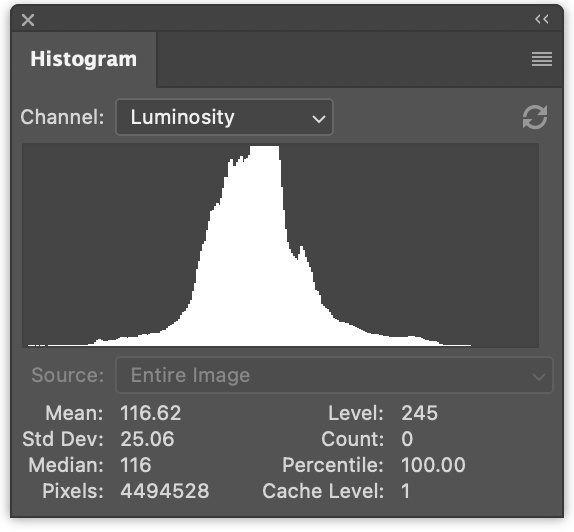
左边是三个直方图,分别对应红色、绿色和蓝色通道,它们被绘制为重叠状态。右边是一个亮度直方图,即我们在上一篇文章中生成的那种。
一次性生成全部 4 个直方图只需要很小的改动。
在 JavaScript 中,一次性生成 4 个直方图的改动如下:
function computeHistogram(numBins, imgData) {
  const { width, height, data } = imgData;
  const bins = new Array(numBins * 4).fill(0);
  for (let y = 0; y < height; ++y) {
    for (let x = 0; x < width; ++x) {
      const offset = (y * width + x) * 4;

      for (const ch = 0; ch < 4; ++ch) {
        const v =
          ch < 3
            ? data[offset + ch] / 255
            : srgbLuminance(
                data[offset + 0] / 255,
                data[offset + 1] / 255,
                data[offset + 2] / 255,
              );
        const bin = Math.min(numBins - 1, v * numBins) | 0;
        ++bins[bin * 4 + ch];
      }
    }
  }
  return bins;
}
这将生成交错排列的直方图:r, g, b, l, r, g, b, l, r, g, b, l ……
我们可以更新绘制代码:
function drawHistogram(histogram, numEntries, channels, height = 100) {
  // 找出每个通道的最大值
  const numBins = histogram.length / 4;
  const max = [0, 0, 0, 0];
  histogram.forEach((v, ndx) => {
    const ch = ndx % 4;
    max[ch] = Math.max(max[ch], v);
  });
  const scale = max.map((max) =>
    Math.max(1 / max, (0.2 * numBins) / numEntries),
  );

  const canvas = document.createElement("canvas");
  canvas.width = numBins;
  canvas.height = height;
  document.body.appendChild(canvas);
  const ctx = canvas.getContext("2d");

  const colors = [
    "rgb(255, 0, 0)",
    "rgb(0, 255, 0)",
    "rgb(0, 0, 255)",
    "rgb(255, 255, 255)",
  ];
  ctx.globalCompositeOperation = "screen";

  for (let x = 0; x < numBins; ++x) {
    const offset = x * 4;
    for (const ch of channels) {
      const v = histogram[offset + ch] * scale[ch] * height;
      ctx.fillStyle = colors[ch];
      ctx.fillRect(x, height - v, 1, v);
    }
  }
}
然后调用该函数两次,一次用于绘制颜色直方图,一次用于绘制亮度直方图:
const histogram = computeHistogram(numBins, imgData);

showImageBitmap(imgBitmap);

// 绘制红、绿、蓝通道
const numEntries = imgData.width * imgData.height;
drawHistogram(histogram, numEntries, [0, 1, 2]);

// 绘制亮度通道
drawHistogram(histogram, numEntries, [3]);
对 WGSL 示例做同样的修改甚至更简单。
例如,第一个速度较慢的示例需要这样修改:
@group(0) @binding(0) `var<storage, read_write>` bins: `array<vec4u>`;
@group(0) @binding(1) var ourTexture: `texture_2d<f32>`;

// 来自: https://www.w3.org/WAI/GL/wiki/Relative_luminance
const kSRGBLuminanceFactors = vec3f(0.2126, 0.7152, 0.0722);
fn srgbLuminance(color: vec3f) -> f32 {
  return saturate(dot(color, kSRGBLuminanceFactors));
}

@compute @workgroup_size(1, 1, 1) fn cs() {
  let size = textureDimensions(ourTexture, 0);
  let numBins = f32(arrayLength(&bins));
  let lastBinIndex = u32(numBins - 1);
  for (var y = 0u; y < size.y; y++) {
    for (var x = 0u; x < size.x; x++) {
      let position = vec2u(x, y);
      var channels = textureLoad(ourTexture, position, 0);
      channels.w = srgbLuminance(channels.rgb);
      for (var ch = 0; ch < 4; ch++) {
        let v = channels[ch];
        let bin = min(u32(v * numBins), lastBinIndex);
        bins[bin][ch] += 1;
      }
    }
  }
}
我们需要通过将 bins 从 array<u32> 改为 array<vec4u> 来为所有 4 个通道腾出空间。
然后从纹理中取出颜色,计算亮度并放入 channels 的 w 分量:
  var channels = textureLoad(ourTexture, position, 0);
  channels.w = srgbLuminance(channels.rgb);
这样我们就可以循环遍历 4 个通道并递增正确的 bin。
唯一需要做的其他改动是为缓冲区分配 4 倍的内存:
const histogramBuffer = device.createBuffer({
  size: 256 * 4 * 4, // 256 个条目 * 4 (rgba) * 4 字节 (u32)
  usage: GPUBufferUsage.STORAGE | GPUBufferUsage.COPY_SRC,
});
对我们的最快版本做类似的修改:
const chunkWidth = 256;
const chunkHeight = 1;
const chunkSize = chunkWidth * chunkHeight;
`var<workgroup>` bins: `array<array<atomic<u32>`, 4>, chunkSize>;
@group(0) @binding(0) `var<storage, read_write>` chunks: `array<array<vec4u, chunkSize>`>;
@group(0) @binding(1) var ourTexture: `texture_2d<f32>`;

const kSRGBLuminanceFactors = vec3f(0.2126, 0.7152, 0.0722);
fn srgbLuminance(color: vec3f) -> f32 {
  return saturate(dot(color, kSRGBLuminanceFactors));
}

@compute @workgroup_size(chunkWidth, chunkHeight, 1)
fn cs(
  @builtin(workgroup_id) workgroup_id: vec3u,
  @builtin(local_invocation_id) local_invocation_id: vec3u,
) {
  let size = textureDimensions(ourTexture, 0);
  let position = workgroup_id.xy * vec2u(chunkWidth, chunkHeight) +
                 local_invocation_id.xy;
  if (all(position < size)) {
    let numBins = f32(chunkSize);
    let lastBinIndex = u32(numBins - 1);
    var channels = textureLoad(ourTexture, position, 0);
    channels.w = srgbLuminance(channels.rgb);
    for (var ch = 0; ch < 4; ch++) {
      let v = channels[ch];
      let bin = min(u32(v * numBins), lastBinIndex);
      atomicAdd(&bins[bin][ch], 1u);
    }
  }

  workgroupBarrier();

  let chunksAcross = (size.x + chunkWidth - 1) / chunkWidth;
  let chunk = workgroup_id.y * chunksAcross + workgroup_id.x;
  let bin = local_invocation_id.y * chunkWidth + local_invocation_id.x;

  chunks[chunk][bin] = vec4u(
    atomicLoad(&bins[bin][0]),
    atomicLoad(&bins[bin][1]),
    atomicLoad(&bins[bin][2]),
    atomicLoad(&bins[bin][3]),
  );
}
对于 reduce 着色器:
const chunkWidth = 256;
const chunkHeight = 1;
const chunkSize = chunkWidth * chunkHeight;

struct Uniforms {
  stride: u32,
};

@group(0) @binding(0) `var<storage, read_write>` chunks: `array<array<vec4u, chunkSize>`>;
@group(0) @binding(1) `var<uniform>` uni: Uniforms;

@compute @workgroup_size(chunkSize, 1, 1) fn cs(
  @builtin(local_invocation_id) local_invocation_id: vec3u,
  @builtin(workgroup_id) workgroup_id: vec3u,
) {
  let chunk0 = workgroup_id.x * uni.stride * 2;
  let chunk1 = chunk0 + uni.stride;

  let sum = chunks[chunk0][local_invocation_id.x] +
            chunks[chunk1][local_invocation_id.x];
  chunks[chunk0][local_invocation_id.x] = sum;
}
同样需要增大缓冲区尺寸:
const chunksBuffer = device.createBuffer({
  size: numChunks * chunkSize * 4 * 4, // 16 字节/条目 (vec4u)
  usage: GPUBufferUsage.STORAGE | GPUBufferUsage.COPY_SRC,
});

const resultBuffer = device.createBuffer({
  size: chunkSize * 4 * 4,
  usage: GPUBufferUsage.COPY_DST | GPUBufferUsage.MAP_READ,
});
就是这样。
在 GPU 上绘制直方图
让我们在 GPU 上绘制直方图。在 JavaScript 中,我们使用 canvas 2D API 为每个 bin 绘制一个 1×height 的矩形,这非常容易。我们也可以用 WebGPU 这样做,但我认为对于绘制直方图这个特定问题有更好的方法。
让我们直接绘制一个矩形。绘制矩形我们在很多地方都介绍过。例如,纹理相关文章中的大多数示例都使用矩形。
对于直方图,在片段着色器中,我们可以传入纹理坐标,将水平方向从 0→1 转换到 0→numBins-1。然后查找该 bin 的值并计算 0 到 1 范围内的高度。再将其与垂直纹理坐标比较。如果纹理坐标高于该高度,则绘制 0;如果低于该高度,则绘制某种颜色。
这对于单个通道是可行的,但我们想绘制多个通道。因此,我们将设置一个位,每个高于高度的通道对应一个位,然后用这 4 个位从 16 种颜色中查找一种。这也能让我们选择用于表示每个通道及其组合的颜色。
下面是实现此功能的片段着色器:
struct Uniforms {
  matrix: mat4x4f,  // <- 由顶点着色器使用
  colors: `array<vec4f, 16>`,
  channelMult: vec4u,
};

@group(0) @binding(0) `var<storage, read>` bins: `array<vec4u>`;
@group(0) @binding(1) `var<uniform>` uni: Uniforms;
@group(0) @binding(2) `var<storage, read_write>` scale: vec4f;

@fragment fn fs(fsInput: OurVertexShaderOutput) -> @location(0) vec4f {
  let numBins = arrayLength(&bins);
  let lastBinIndex = u32(numBins - 1);
  let bin = clamp(
      u32(fsInput.texcoord.x * f32(numBins)),
      0,
      lastBinIndex);
  let heights = vec4f(bins[bin]) * scale;
  let bits = heights > vec4f(fsInput.texcoord.y);
  let ndx = dot(select(vec4u(0), uni.channelMult, bits), vec4u(1));
  return uni.colors[ndx];
}
第一部分根据水平纹理坐标计算 bin:
  let numBins = arrayLength(&bins);
  let lastBinIndex = u32(numBins - 1);
  let bin = clamp(
      u32(fsInput.texcoord.x * f32(numBins)),
      0,
      lastBinIndex);
下一部分获取所有 4 个通道的高度。我们像 JavaScript 中那样乘以 scale。稍后需要提供该值。
let heights = vec4f(bins[bin]) * scale;
接下来在 vec4<bool> 中设置 4 个布尔值,每个通道一个。当 bin 的高度高于纹理坐标时为 true。
let bits = heights > vec4f(fsInput.texcoord.y);
下一部分根据这 4 个布尔值从 uni.channelMult 中选择值,然后将 4 个值相加。能够传入 uni.channelMult 与我们在 JavaScript 中所做的类似,让我们选择要绘制的通道。例如,如果将 channelMult 设置为 1, 2, 4, 0,就会得到红色、绿色和蓝色直方图。
let ndx = dot(select(vec4u(0), uni.channelMult, bits), vec4u(1));
最后一部分查找 16 种颜色之一:
return uni.colors[ndx];
我们还需要一个着色器来计算 scale。在 JavaScript 中我们这样做:
const numBins = histogram.length / 4;
const max = [0, 0, 0, 0];
histogram.forEach((v, ndx) => {
  const ch = ndx % 4;
  max[ch] = Math.max(max[ch], v);
});
const scale = max.map((max) => Math.max(1 / max, (0.2 * numBins) / numEntries));
在计算着色器中做同样的事情:
@group(0) @binding(0) `var<storage, read>` bins: `array<vec4u>`;
@group(0) @binding(1) `var<storage, read_write>` scale: vec4f;
@group(0) @binding(2) var ourTexture: `texture_2d<f32>`;

@compute @workgroup_size(1, 1, 1) fn cs() {
  let size = textureDimensions(ourTexture, 0);
  let numEntries = f32(size.x * size.y);
  var m = vec4u(0);
  let numBins = arrayLength(&bins);
  for (var i = 0u ; i < numBins; i++) {
    m = max(m, bins[i]);
  }
  scale = max(1.0 / vec4f(m), vec4f(0.2 * f32(numBins) / numEntries));
}
注意,传入 ourTexture 的唯一原因是获取其尺寸以计算 numEntries,而在 JavaScript 中我们直接传入了 numEntries。我们也可以用 uniform 传入 numEntries,但那需要创建 uniform 缓冲区、更新值、绑定等。直接引用纹理本身似乎更简单。
另一个需要考虑的是这里我们只用了单核。这里也可以做归约,但只有 numBins 步,即 256 步。调度一堆归约步骤的开销可能会超过并行化的收益。我实际计时过,大约 0.1ms,至少在一台机器上是这样。
所以剩下的就是把这些部分组装起来。
由于我们要用 GPU 绘制到 canvas,需要获取首选画布格式:
const presentationFormat = navigator.gpu.getPreferredCanvasFormat();
我们需要创建包含上述两个着色器的着色器模块,并为每个创建管线:
  const scaleModule = device.createShaderModule({
    label: 'histogram scale shader',
    code: /* wgsl */ `
      @group(0) @binding(0) `var<storage, read>` bins: `array<vec4u>`;
      @group(0) @binding(1) `var<storage, read_write>` scale: vec4f;
      @group(0) @binding(2) var ourTexture: `texture_2d<f32>`;

      @compute @workgroup_size(1, 1, 1) fn cs() {
        let size = textureDimensions(ourTexture, 0);
        let numEntries = f32(size.x * size.y);
        var m = vec4u(0);
        let numBins = arrayLength(&bins);
        for (var i = 0u ; i < numBins; i++) {
          m = max(m, bins[i]);
        }
        scale = max(1.0 / vec4f(m), vec4f(0.2 * f32(numBins) / numEntries));
      }
    `,
  });

  const drawHistogramModule = device.createShaderModule({
    label: 'draw histogram shader',
    code: /* wgsl */ `
      struct OurVertexShaderOutput {
        @builtin(position) position: vec4f,
        @location(0) texcoord: vec2f,
      };

      struct Uniforms {
        matrix: mat4x4f,
        colors: `array<vec4f, 16>`,
        channelMult: vec4u,
      };

      @group(0) @binding(0) `var<storage, read>` bins: `array<vec4u>`;
      @group(0) @binding(1) `var<uniform>` uni: Uniforms;
      @group(0) @binding(2) `var<storage, read_write>` scale: vec4f;

      @vertex fn vs(
        @builtin(vertex_index) vertexIndex : u32
      ) -> OurVertexShaderOutput {
        let pos = array(
          // 三角形 1
          vec2f( 0.0,  0.0),  // 中心
          vec2f( 1.0,  0.0),  // 右侧,中心
          vec2f( 0.0,  1.0),  // 中心,顶部

          // 三角形 2
          vec2f( 0.0,  1.0),  // 中心,顶部
          vec2f( 1.0,  0.0),  // 右侧,中心
          vec2f( 1.0,  1.0),  // 右侧,顶部
        );

        var vsOutput: OurVertexShaderOutput;
        let xy = pos[vertexIndex];
        vsOutput.position = uni.matrix * vec4f(xy, 0.0, 1.0);
        vsOutput.texcoord = xy;
        return vsOutput;
      }

      @fragment fn fs(fsInput: OurVertexShaderOutput) -> @location(0) vec4f {
        let numBins = arrayLength(&bins);
        let lastBinIndex = u32(numBins - 1);
        let bin = clamp(
            u32(fsInput.texcoord.x * f32(numBins)),
            0,
            lastBinIndex);
        let heights = vec4f(bins[bin]) * scale;
        let bits = heights > vec4f(fsInput.texcoord.y);
        let ndx = dot(select(vec4u(0), uni.channelMult, bits), vec4u(1));
        return uni.colors[ndx];
      }
    `,
  });

  const scalePipeline = device.createComputePipeline({
    label: 'scale',
    layout: 'auto',
    compute: {
      module: scaleModule,
    },
  });

  const drawHistogramPipeline = device.createRenderPipeline({
    label: 'draw histogram',
    layout: 'auto',
    vertex: {
      module: drawHistogramModule,
    },
    fragment: {
      module: drawHistogramModule,
      targets: [{ format: presentationFormat }],
    },
  });
我们不再需要 result buffer,因为不会读回值,但需要一个 scale buffer 来存储计算出的 scale:
const scaleBuffer = device.createBuffer({
  size: 4 * 4,
  usage: GPUBufferUsage.STORAGE,
});
我们需要为 scale 管线创建一个绑定组,包含 chunks、scale buffer 和纹理:
const scaleBindGroup = device.createBindGroup({
  layout: scalePipeline.getBindGroupLayout(0),
  entries: [
    {
      binding: 0,
      resource: {
        buffer: chunksBuffer,
        size: chunkSize * 4 * 4,
      },
    },
    { binding: 1, resource: scaleBuffer },
    { binding: 2, resource: texture },
  ],
});
上面我们将 chunksBuffer 的绑定大小设置为第一个 chunk 的大小。这样,在着色器中:
      @group(0) @binding(0) `var<storage, read>` bins: `array<vec4u>`;

      ...

        let numBins = arrayLength(&bins);
就能得到正确的值。如果我们不指定大小,整个 chunksBuffer 的大小都会可用,numBins 会根据所有 chunk 计算,而不仅仅是第一个。
现在,在我们把 chunks 归约成一个 chunk 之后,可以运行 scale 计算着色器来计算 scale。由于不再有 result buffer,我们不需要将第一个 chunk 复制到 result buffer,也不需要映射 result buffer,也不需要传入 numEntries(因为我们已经用纹理计算了)。数据已经在 chunksBuffer 中:
// 计算各通道的 scale
pass.setPipeline(scalePipeline);
pass.setBindGroup(0, scaleBindGroup);
pass.dispatchWorkgroups(1);
pass.end();

const commandBuffer = encoder.finish();
device.queue.submit([commandBuffer]);

showImageBitmap(imgBitmap);

// 绘制红、绿、蓝通道
drawHistogram([0, 1, 2]);

// 绘制亮度通道
drawHistogram([3]);
现在我们需要更新 drawHistogram 函数以使用 GPU 渲染。
首先创建一个 uniform buffer 来传递 uniforms。参考着色器中的 uniforms:
struct Uniforms {
  matrix: mat4x4f,
  colors: `array<vec4f, 16>`,
  channelMult: vec4u,
};
以下是创建并填充该 buffer 的代码:
  function drawHistogram(channels, height = 100) {
    const numBins = chunkSize;

    //  matrix: mat4x4f;
    //  colors: `array<vec4f, 16>`;
    //  channelMult; vec4u,
    const uniformValuesAsF32 = new Float32Array(16 + 64 + 4 + 4);
    const uniformValuesAsU32 = new Uint32Array(uniformValuesAsF32.buffer);
    const uniformBuffer = device.createBuffer({
      label: 'draw histogram uniform buffer',
      size: uniformValuesAsF32.byteLength,
      usage: GPUBufferUsage.UNIFORM | GPUBufferUsage.COPY_DST,
    });
    const subpart = (view, offset, length) => view.subarray(offset, offset + length);
    const matrix = subpart(uniformValuesAsF32, 0, 16);
    const colors = subpart(uniformValuesAsF32, 16, 64);
    const channelMult = subpart(uniformValuesAsU32, 16 + 64, 4);
    const range = (i, fn) => new Array(i).fill(0).map((_, i) => fn(i));
    channelMult.set(range(4, i => channels.indexOf(i) >= 0 ? 2 ** i : 0));
    colors.set([
      [0, 0, 0, 1],
      [1, 0, 0, 1],
      [0, 1, 0, 1],
      [1, 1, 0, 1],
      [0, 0, 1, 1],
      [1, 0, 1, 1],
      [0, 1, 1, 1],
      [0.5, 0.5, 0.5, 1],
      [1, 1, 1, 1],
      [1, 1, 1, 1],
      [1, 1, 1, 1],
      [1, 1, 1, 1],
      [1, 1, 1, 1],
      [1, 1, 1, 1],
      [1, 1, 1, 1],
      [1, 1, 1, 1],
    ].flat());
我们还需要使用矩阵数学计算一个矩阵,正如矩阵数学系列文章中所介绍的那样。
具体来说,着色器中硬编码了一个从 0 到 1 在 X 和 Y 方向的单位四边形。如果我们在 X 和 Y 都缩放 2 并减去 1,就得到一个在裁剪空间中从 -1 到 +1 的四边形。这种使用单个单位四边形的方法很常见,因为这样我们只需使用一点矩阵数学就能在任意位置和方向绘制矩形,而不需要制作特殊的顶点数据。
mat4.identity(matrix);
mat4.translate(matrix, [-1, -1, 0], matrix);
mat4.scale(matrix, [2, 2, 1], matrix);
device.queue.writeBuffer(uniformBuffer, 0, uniformValuesAsF32);
我们需要为所有这些创建一个 bindGroup:
const bindGroup = device.createBindGroup({
  layout: drawHistogramPipeline.getBindGroupLayout(0),
  entries: [
    { binding: 0, resource: { buffer: chunksBuffer, size: chunkSize * 4 * 4 } },
    { binding: 1, resource: uniformBuffer },
    { binding: 2, resource: scaleBuffer },
  ],
});
需要一个配置为 WebGPU 的 canvas:
const canvas = document.createElement("canvas");
const context = canvas.getContext("webgpu");
context.configure({
  device,
  format: presentationFormat,
});
canvas.width = numBins;
canvas.height = height;
document.body.appendChild(canvas);
最后进行渲染:
    // 从 canvas context 获取当前纹理并设置为渲染目标
    const renderPassDescriptor = {
      label: 'our basic canvas renderPass',
      colorAttachments: [
        {
          view: context.getCurrentTexture().createView(),
          clearValue: [0.3, 0.3, 0.3, 1],
          loadOp: 'clear',
          storeOp: 'store',
        },
      ],
    };

    const encoder = device.createCommandEncoder({ label: 'render histogram' });
    const pass = encoder.beginRenderPass(renderPassDescriptor);
    pass.setPipeline(drawHistogramPipeline);
    pass.setBindGroup(0, bindGroup);
    pass.draw(6);  // 调用顶点着色器 6 次
    pass.end();

    const commandBuffer = encoder.finish();
    device.queue.submit([commandBuffer]);
  }
以上就是所有内容,现在我们完全在 GPU 上渲染了。
让视频也拥有直方图
让我们做最后一件事——获取视频的直方图。我们实际上是将外部视频的文章示例和之前的示例合并起来。
需要更新 HTML 和 CSS 以匹配视频示例:
    <style>
      @import url(resources/webgpu-lesson.css);
html, body {
  margin: 0;       /* 移除默认边距 */
  height: 100%;    /* 让 html,body 充满页面 */
}
canvas {
  display: block;  /* 让 canvas 像块元素一样 */
  width: 100%;     /* 让 canvas 充满容器 */
  height: 100%;
}
#start {
  position: fixed;
  left: 0;
  top: 0;
  width: 100%;
  height: 100%;
  display: flex;
  justify-content: center;
  align-items: center;
}
#start>div {
  font-size: 200px;
  cursor: pointer;
}
    </style>
  </head>
  <body>
    <canvas></canvas>
    <div id="start">
      <div>▶️</div>
    </div>
  </body>
一开始就设置好 canvas:
// 从 canvas 获取 WebGPU context 并配置
const canvas = document.querySelector("canvas");
const context = canvas.getContext("webgpu");
const presentationFormat = navigator.gpu.getPreferredCanvasFormat();
context.configure({
  device,
  format: presentationFormat,
});
由于使用外部纹理,需要修改着色器中纹理类型的声明:
const chunkSize = chunkWidth * chunkHeight;
`var<workgroup>` bins: `array<array<atomic<u32>`, 4>, chunkSize>;
@group(0) @binding(0) `var<storage, read_write>` chunks: `array<array<vec4u, chunkSize>`>;
@group(0) @binding(1) var ourTexture: texture_external;

const kSRGBLuminanceFactors = vec3f(0.2126, 0.7152, 0.0722);
fn srgbLuminance(color: vec3f) -> f32 {
  return saturate(dot(color, kSRGBLuminanceFactors));
}

@compute @workgroup_size(chunkWidth, chunkHeight, 1)
fn cs(
  @builtin(workgroup_id) workgroup_id: vec3u,
  @builtin(local_invocation_id) local_invocation_id: vec3u,
) {
  let size = textureDimensions(ourTexture);
  let position = workgroup_id.xy * vec2u(chunkWidth, chunkHeight) +
                 local_invocation_id.xy;
  if (all(position < size)) {
    let numBins = f32(chunkSize);
    let lastBinIndex = u32(numBins - 1);
    var channels = textureLoad(ourTexture, position);
    channels.w = srgbLuminance(channels.rgb);
    for (var ch = 0; ch < 4; ch++) {
      let v = channels[ch];
      let bin = min(u32(v * numBins), lastBinIndex);
      atomicAdd(&bins[bin][ch], 1u);
    }
  }
  ...
scale 计算着色器也做类似修改:
@group(0) @binding(0) `var<storage, read>` bins: `array<vec4u>`;
@group(0) @binding(1) `var<storage, read_write>` scale: vec4f;
@group(0) @binding(2) var ourTexture: texture_external;

@compute @workgroup_size(1, 1, 1) fn cs() {
  let size = textureDimensions(ourTexture);
  let numEntries = f32(size.x * size.y);
  ...
绘制视频的着色器模块直接从视频文章复制,创建渲染管线的代码也一样,还有采样器、uniform buffer 和绘制视频的 render pass。等待点击并开始播放视频的代码也是相同的。
视频开始后就可以设置直方图计算。唯一的变化是我们从视频而不是纹理获取尺寸:
const chunksAcross = Math.ceil(video.videoWidth / k.chunkWidth);
const chunksDown = Math.ceil(video.videoHeight / k.chunkHeight);
我们将原来的 drawHistogram 函数拆解,为要绘制的两个直方图分别设置 uniform buffer 和 bind group:
const histogramDrawInfos = [[0, 1, 2], [3]].map((channels) => {
  const uniformValuesAsF32 = new Float32Array(16 + 64 + 4 + 4);
  const uniformValuesAsU32 = new Uint32Array(uniformValuesAsF32.buffer);
  const uniformBuffer = device.createBuffer({
    label: "draw histogram uniform buffer",
    size: uniformValuesAsF32.byteLength,
    usage: GPUBufferUsage.UNIFORM | GPUBufferUsage.COPY_DST,
  });
  thingsToDestroy.push(uniformBuffer);
  const subpart = (view, offset, length) =>
    view.subarray(offset, offset + length);
  const matrix = subpart(uniformValuesAsF32, 0, 16);
  const colors = subpart(uniformValuesAsF32, 16, 64);
  const channelMult = subpart(uniformValuesAsU32, 16 + 64, 4);
  colors.set(
    [
      [0, 0, 0, 1],
      [1, 0, 0, 1],
      [0, 1, 0, 1],
      [1, 1, 0, 1],
      [0, 0, 1, 1],
      [1, 0, 1, 1],
      [0, 1, 1, 1],
      [0.5, 0.5, 0.5, 1],
      [1, 1, 1, 1],
      [1, 1, 1, 1],
      [1, 1, 1, 1],
      [1, 1, 1, 1],
      [1, 1, 1, 1],
      [1, 1, 1, 1],
      [1, 1, 1, 1],
      [1, 1, 1, 1],
    ].flat(),
  );

  const drawHistogramBindGroup = device.createBindGroup({
    layout: drawHistogramPipeline.getBindGroupLayout(0),
    entries: [
      {
        binding: 0,
        resource: { buffer: chunksBuffer, size: chunkSize * 4 * 4 },
      },
      { binding: 1, resource: uniformBuffer },
      { binding: 2, resource: scaleBuffer },
    ],
  });

  return {
    drawHistogramBindGroup,
    matrix,
    uniformBuffer,
    uniformValuesAsF32,
  };
});
在渲染时,首先导入视频纹理。请记住,它仅在一次 JavaScript 事件中有效,因此必须每帧创建引用该纹理的 bind group:
  function render() {
    const texture = device.importExternalTexture({source: video});

    const histogramBindGroup = device.createBindGroup({
      layout: histogramChunkPipeline.getBindGroupLayout(0),
      entries: [
        { binding: 0, resource: chunksBuffer },
        { binding: 1, resource: texture },
      ],
    });

    const scaleBindGroup = device.createBindGroup({
      layout: scalePipeline.getBindGroupLayout(0),
      entries: [
        { binding: 0, resource: { buffer: chunksBuffer, size: chunkSize * 4 * 4 }},
        { binding: 1, resource: scaleBuffer },
        { binding: 2, resource: texture },
      ],
    });

    ... 此处插入直方图计算代码 ...
绘制视频与外部视频渲染文章类似。一个区别是计算矩阵的代码。我们做的是缩放 2 减 1 的操作,但对于 y 使用 -2 并加 1 来翻转 Y。同时进行缩放以获得 cover 效果,使视频始终填满 canvas 但保持正确的宽高比:
    // 绘制到 canvas
    {
      const canvasTexture = context.getCurrentTexture().createView();
      renderPassDescriptor.colorAttachments[0].view = canvasTexture;
      const pass = encoder.beginRenderPass(renderPassDescriptor);

      // 绘制视频
      const bindGroup = device.createBindGroup({
        layout: videoPipeline.getBindGroupLayout(0),
        entries: [
          { binding: 0, resource: videoSampler },
          { binding: 1, resource: texture },
          { binding: 2, resource: videoUniformBuffer },
        ],
      });

      // 'cover' canvas
      const canvasAspect = canvas.clientWidth / canvas.clientHeight;
      const videoAspect = video.videoWidth / video.videoHeight;
      const scale = canvasAspect > videoAspect
         ? [1, canvasAspect / videoAspect, 1]
         : [videoAspect / canvasAspect, 1, 1];

      const matrix = mat4.identity(videoMatrix);
      mat4.scale(matrix, scale, matrix);
      mat4.translate(matrix, [-1, 1, 0], matrix);
      mat4.scale(matrix, [2, -2, 1], matrix);

      device.queue.writeBuffer(videoUniformBuffer, 0, videoUniformValues);

      pass.setPipeline(videoPipeline);
      pass.setBindGroup(0, bindGroup);
      pass.draw(6);
绘制直方图就是将 drawHistogram 中的代码移上来:
      // 绘制直方图
      histogramDrawInfos.forEach(({
        matrix,
        uniformBuffer,
        uniformValuesAsF32,
        drawHistogramBindGroup,
      }, i) => {
        mat4.identity(matrix);
        mat4.translate(matrix, [-0.95 + i, -1, 0], matrix);
        mat4.scale(matrix, [0.9, 0.5, 1], matrix);

        device.queue.writeBuffer(uniformBuffer, 0, uniformValuesAsF32);

        pass.setPipeline(drawHistogramPipeline);
        pass.setBindGroup(0, drawHistogramBindGroup);
        pass.draw(6);
      });

      pass.end();
    }

    const commandBuffer = encoder.finish();
    device.queue.submit([commandBuffer]);

    requestAnimationFrame(render);
  }
  requestAnimationFrame(render);
上面的矩阵数学在左半边或右半边绘制一个四边形,宽度为 canvas 一半宽度的 90%,居中在该半区,高度为 canvas 高度的四分之一。
核心优化要点提炼
-
向量化存储与计算:使用
vec4u替代u32标量,将 RGBA 四通道数据打包存储,一举将内存带宽需求提升至 4 倍,同时减少存储 buffer 绑定数量。在着色器中配合atomicAdd对向量分量进行原子操作,有效解决了多通道直方图的并行累加问题。 -
共享内存 + 原子操作的两阶段归约:先在 workgroup 内使用共享内存(
var<workgroup>)进行本地 bin 累加,通过atomicAdd避免竞争条件,再用workgroupBarrier同步后将结果写入全局 storage buffer。之后单独执行归约着色器合并各 chunk,避免了全局内存的频繁原子操作。 -
GPU 端直方图绘制与极致延迟优化:将原本 JavaScript canvas 2D 绘制改为 GPU 片段着色器直接绘制。通过位掩码
channelMult选择通道,用select与dot在片段着色器中高效查询 16 种组合颜色,省去 JS 读回与 CPU 绘图开销。对于视频场景,每帧动态导入外部纹理,实现完全 GPU 端实时直方图渲染。
GLSL/WebGL 专业术语检查
| 术语 | 建议译法 | 备注 |
|---|---|---|
| Compute Shader | 计算着色器 | WebGPU 术语,与 WebGL 无直接对应 |
| Workgroup | 工作组 | 类似 CUDA 的 thread block |
| Storage Buffer | 存储缓冲区 | WebGPU 术语 |
| Uniform Buffer | 统一缓冲区 | 对应 GLSL 的 uniform buffer object (UBO) |
| Atomic Operation | 原子操作 | 如 atomicAdd、atomicLoad |
| Bind Group | 绑定组 | WebGPU 专有概念 |
| Texture | 纹理 | 通用 |
| External Texture | 外部纹理 | WebGPU 专有,用于视频帧 |
| Texture Coordinate | 纹理坐标 | 通用 |
| Fragment Shader | 片段着色器 | 对应 GLSL 的 fragment shader |
| Vertex Shader | 顶点着色器 | 通用 |
| Render Pass | 渲染通道 | WebGPU 术语,类似 WebGL 的 draw call 批次 |
| Render Pipeline | 渲染管线 | WebGPU 术语 |
| Compute Pipeline | 计算管线 | WebGPU 术语 |
| Clip Space | 裁剪空间 | 通用 |
| Workgroup Barrier | 工作组屏障 | 类似 GLSL 的 barrier() |
| Invocation | 调用 | 着色器的一次执行 |
| Reduction | 归约 | 通用并行计算术语 |
| Luminance | 亮度 | 通用 |
| SRGB | sRGB | 颜色空间 |
vec4f / vec4u | 四分量浮点/无符号整数向量 | WGSL 类型 |
mat4x4f | 4×4 浮点矩阵 | WGSL 类型 |
texture_2d<f32> | 二维浮点纹理 | WGSL 类型 |
texture_external | 外部纹理 | WGSL 类型 |
textureLoad | 纹理加载 | WGSL 内置函数 |
textureDimensions | 纹理尺寸 | WGSL 内置函数 |
atomicAdd | 原子加法 | WGSL 内置函数 |
atomicLoad | 原子读取 | WGSL 内置函数 |
arrayLength | 数组长度 | WGSL 内置函数 |
saturate | 饱和截断到 [0,1] | 对应 GLSL clamp(x, 0.0, 1.0) |
dot | 点积 | 通用 |
select | 选择 | WGSL 内置函数,类似 GLSL mix 用于向量 |
clamp | 截断 | 通用 |
原文设置最后包含一些关于直方图应用场景的讨论:可以用于向用户展示图像调整参考、直方图均衡化、自适应直方图均衡化、基于直方图的图像分割以及直方图阈值化等技术,这些留待以后讨论。