WebGPU 加载图像到纹理
原文标题:WebGPU Loading Images into Textures
原作者:webgpufundamentals Contributors
原始链接:https://webgpufundamentals.org/webgpu/lessons/webgpu-importing-textures.html
本文将介绍如何把图像加载到纹理中,以及在 GPU 上生成 mipmap。

使用 copyExternalImageToTexture 加载图像
上一篇文章中,我们通过 device.createTexture 创建纹理,再用 device.queue.writeTexture 写入数据。其实 device.queue 上还有一个函数 device.queue.copyExternalImageToTexture,可以直接将图像复制到纹理中。它接受一个 ImageBitmap 作为源,所以我们可以从上一篇文章的 magFilter 示例修改,改为加载几张图片。
首先编写从图片 URL 获取 ImageBitmap 的代码:
async function loadImageBitmap(url) {
  const res = await fetch(url);
  const blob = await res.blob();
  return await createImageBitmap(blob, { colorSpaceConversion: "none" });
}
这段代码调用 fetch 获取图片 URL 的响应,再从中取得 Blob(图片文件的原始数据),然后调用浏览器标准 API createImageBitmap 生成 ImageBitmap。我们传入 { colorSpaceConversion: 'none' } 告诉浏览器不要应用任何色彩空间转换。是否让浏览器做色彩空间转换取决于你的需求——在 WebGPU 中,我们常加载法线贴图、高度图等非颜色数据,此时绝对不希望浏览器修改图像数据。
有了 ImageBitmap 后,加载一张图片并创建相同尺寸的纹理。这里使用下面这张 F 纹理(带 F 的纹理便于观察方向):
-  const texture = device.createTexture({
-    label: 'yellow F on red',
-    size: [kTextureWidth, kTextureHeight],
-    format: 'rgba8unorm',
-    usage:
-      GPUTextureUsage.TEXTURE_BINDING |
-      GPUTextureUsage.COPY_DST,
-  });
+  const url = 'resources/images/f-texture.png';
+  const source = await loadImageBitmap(url);
+  const texture = device.createTexture({
+    label: url,
+    format: 'rgba8unorm',
+    size: [source.width, source.height],
+    usage: GPUTextureUsage.TEXTURE_BINDING |
+           GPUTextureUsage.COPY_DST |
+           GPUTextureUsage.RENDER_ATTACHMENT,
+  });
注意 copyExternalImageToTexture 要求纹理的 usage 中包含 GPUTextureUsage.COPY_DST 和 GPUTextureUsage.RENDER_ATTACHMENT 标志。
然后将 ImageBitmap 复制到纹理:
-  device.queue.writeTexture(
-      { texture },
-      textureData,
-      { bytesPerRow: kTextureWidth * 4 },
-      { width: kTextureWidth, height: kTextureHeight },
-  );
+  device.queue.copyExternalImageToTexture(
+    { source, flipY: true },
+    { texture },
+    { width: source.width, height: source.height },
+  );
copyExternalImageToTexture 的参数依次是:源、目标、尺寸。源对象中可以设置 flipY: true 在加载时翻转 Y 轴。
这样就可以工作了。
在 GPU 上生成 mipmap
在上一篇文章中我们生成了 mipmap,但当时是直接操作图像数据。加载图片时,你可以先把图片绘制到 2D canvas,再调用 getImageData 获取像素数据,然后生成 mip 并上传。但这样做很慢,而且 canvas 2D 渲染本身是有损的(实现相关)。
之前生成 mip 时我们用的是双线性插值,而这正是 GPU 使用 minFilter: linear 时所做的。所以我们可以利用这个特性在 GPU 上生成 mip。
计算所需 mip 层数:
const numMipLevels = (...sizes) => {
  const maxSize = Math.max(...sizes);
  return (1 + Math.log2(maxSize)) | 0;
};
Math.log2 告诉我们把数字除以 2 多少次后得到 1。例如 numMipLevels(123, 456) 返回 9,因为需要 9 层(0 到 8)。
创建纹理时指定正确的 mip 层数:
const texture = device.createTexture({
  label: url,
  format: "rgba8unorm",
  mipLevelCount: numMipLevels(source.width, source.height),
  size: [source.width, source.height],
  usage:
    GPUTextureUsage.TEXTURE_BINDING |
    GPUTextureUsage.COPY_DST |
    GPUTextureUsage.RENDER_ATTACHMENT,
});
device.queue.copyExternalImageToTexture(
  { source, flipY: true },
  { texture },
  { width: source.width, height: source.height },
);
生成 mip 的完整函数如下(代码较长,但与之前纹理示例几乎相同):
const generateMips = (() => {
  let sampler;
  let module;
  const pipelineByFormat = {};

  return function generateMips(device, texture) {
    if (!module) {
      module = device.createShaderModule({
        label: 'textured quad shaders for mip level generation',
        code: /* wgsl */ `
          struct VSOutput {
            @builtin(position) position: vec4f,
            @location(0) texcoord: vec2f,
          };

          @vertex fn vs(
            @builtin(vertex_index) vertexIndex : u32
          ) -> VSOutput {
            let pos = array(
              // 1st triangle
              vec2f( 0.0,  0.0),  // center
              vec2f( 1.0,  0.0),  // right, center
              vec2f( 0.0,  1.0),  // center, top

              // 2nd triangle
              vec2f( 0.0,  1.0),  // center, top
              vec2f( 1.0,  0.0),  // right, center
              vec2f( 1.0,  1.0),  // right, top
            );

            var vsOutput: VSOutput;
            let xy = pos[vertexIndex];
            vsOutput.position = vec4f(xy * 2.0 - 1.0, 0.0, 1.0);
            vsOutput.texcoord = vec2f(xy.x, 1.0 - xy.y);
            return vsOutput;
          }

          @group(0) @binding(0) var ourSampler: sampler;
          @group(0) @binding(1) var ourTexture: `texture_2d<f32>`;

          @fragment fn fs(fsInput: VSOutput) -> @location(0) vec4f {
            return textureSample(ourTexture, ourSampler, fsInput.texcoord);
          }
        `,
      });

      sampler = device.createSampler({
        minFilter: 'linear',
      });
    }

    if (!pipelineByFormat[texture.format]) {
      pipelineByFormat[texture.format] = device.createRenderPipeline({
        label: 'mip level generator pipeline',
        layout: 'auto',
        vertex: {
          module,
        },
        fragment: {
          module,
          targets: [{ format: texture.format }],
        },
      });
    }
    const pipeline = pipelineByFormat[texture.format];

    const encoder = device.createCommandEncoder({
      label: 'mip gen encoder',
    });

    for (let baseMipLevel = 1; baseMipLevel < texture.mipLevelCount; ++baseMipLevel) {
      const bindGroup = device.createBindGroup({
        layout: pipeline.getBindGroupLayout(0),
        entries: [
          { binding: 0, resource: sampler },
          {
            binding: 1,
            resource: texture.createView({
              baseMipLevel: baseMipLevel - 1,
              mipLevelCount: 1,
            }),
          },
        ],
      });

      const renderPassDescriptor = {
        label: 'our basic canvas renderPass',
        colorAttachments: [
          {
            view: texture.createView({
              baseMipLevel,
              mipLevelCount: 1,
            }),
            loadOp: 'clear',
            storeOp: 'store',
          },
        ],
      };

      const pass = encoder.beginRenderPass(renderPassDescriptor);
      pass.setPipeline(pipeline);
      pass.setBindGroup(0, bindGroup);
      pass.draw(6);  // call our vertex shader 6 times
      pass.end();
    }
    const commandBuffer = encoder.finish();
    device.queue.submit([commandBuffer]);
  };
})();
关键点:
- 使用闭包保存
module、sampler、pipelineByFormat以便复用。 - 着色器与前例几乎相同,只是将顶点位置从
uni.matrix改为直接映射到裁剪空间,并翻转 Y 纹理坐标,以保证绘制到整个目标 mip 层。 pipelineByFormat按纹理格式缓存渲染管线,因为管线需要知道目标格式。- 使用
texture.createView选择特定的 mip 层:绑定组中读取上一级 mip,渲染目标设置为当前 mip。 - 遍历每个 mip 层,逐级生成。
注意:这个函数只处理 2D 纹理。立方体贴图文章将扩展它以处理 2D 数组纹理和立方体贴图。
简单图像加载辅助函数
为了方便加载图像并生成 mip,我们封装两个函数:
function copySourceToTexture(device, texture, source, { flipY } = {}) {
  device.queue.copyExternalImageToTexture(
    { source, flipY },
    { texture },
    { width: source.width, height: source.height },
  );

  if (texture.mipLevelCount > 1) {
    generateMips(device, texture);
  }
}
function createTextureFromSource(device, source, options = {}) {
  const texture = device.createTexture({
    format: "rgba8unorm",
    mipLevelCount: options.mips ? numMipLevels(source.width, source.height) : 1,
    size: [source.width, source.height],
    usage:
      GPUTextureUsage.TEXTURE_BINDING |
      GPUTextureUsage.COPY_DST |
      GPUTextureUsage.RENDER_ATTACHMENT,
  });
  copySourceToTexture(device, texture, source, options);
  return texture;
}
async function createTextureFromImage(device, url, options) {
  const imgBitmap = await loadImageBitmap(url);
  return createTextureFromSource(device, imgBitmap, options);
}
替换原有的 createTextureWithMips 调用:
-  const textures = [
-    createTextureWithMips(createBlendedMipmap(), 'blended'),
-    createTextureWithMips(createCheckedMipmap(), 'checker'),
-  ];
+  const textures = await Promise.all([
+    await createTextureFromImage(device,
+        'resources/images/f-texture.png', {mips: true, flipY: false}),
+    await createTextureFromImage(device,
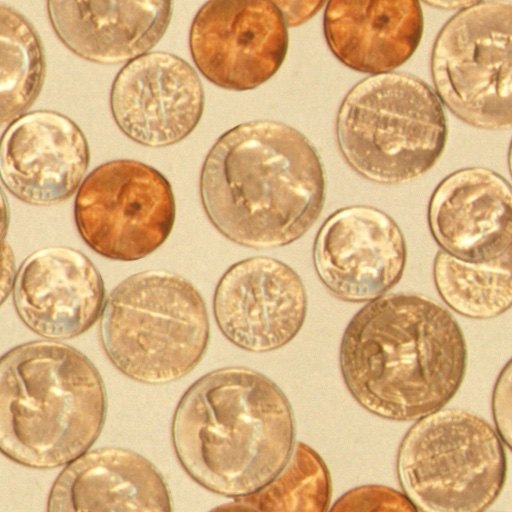
+        'resources/images/coins.jpg', {mips: true}),
+    await createTextureFromImage(device,
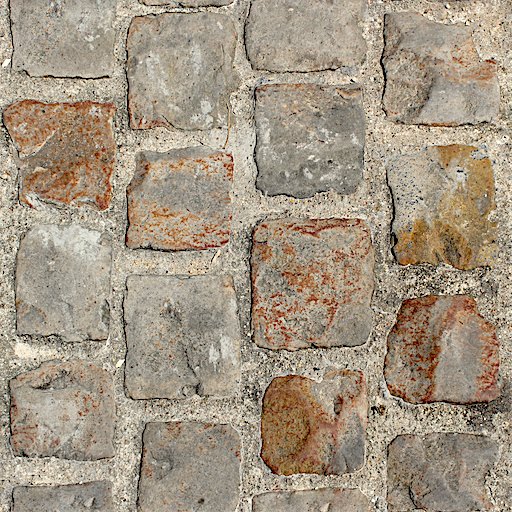
+        'resources/images/Granite_paving_tileable_512x512.jpeg', {mips: true}),
+  ]);
加载 Canvas
copyExternalImageToTexture 还接受 HTMLCanvasElement 作为源。我们可以先在 2D canvas 上绘制,再将结果加载到 WebGPU 纹理。
先创建 canvas 动画:
const size = 256;
const half = size / 2;

const ctx = document.createElement("canvas").getContext("2d");
ctx.canvas.width = size;
ctx.canvas.height = size;

const hsl = (h, s, l) =>
  `hsl(${(h * 360) | 0}, ${s * 100}%, ${(l * 100) | 0}%)`;

function update2DCanvas(time) {
  time *= 0.0001;
  ctx.clearRect(0, 0, size, size);
  ctx.save();
  ctx.translate(half, half);
  const num = 20;
  for (let i = 0; i < num; ++i) {
    ctx.fillStyle = hsl((i / num) * 0.2 + time * 0.1, 1, (i % 2) * 0.5);
    ctx.fillRect(-half, -half, size, size);
    ctx.rotate(time * 0.5);
    ctx.scale(0.85, 0.85);
    ctx.translate(size / 16, 0);
  }
  ctx.restore();
}

function render(time) {
  update2DCanvas(time);
  requestAnimationFrame(render);
}
requestAnimationFrame(render);
加载 canvas 到 WebGPU 只需少量修改:
+  const texture = createTextureFromSource(device, ctx.canvas, {mips: true});

  const textures = await Promise.all([
-    await createTextureFromImage(device,
-        'resources/images/f-texture.png', {mips: true, flipY: false}),
-    await createTextureFromImage(device,
-        'resources/images/coins.jpg', {mips: true}),
-    await createTextureFromImage(device,
-        'resources/images/Granite_paving_tileable_512x512.jpeg', {mips: true}),
+    texture,
  ]);
然后改用 requestAnimationFrame 循环,更新 2D canvas 并上传到 WebGPU:
-  function render() {
+  function render(time) {
+    update2DCanvas(time);
+    copySourceToTexture(device, texture, ctx.canvas);

     ...

    requestAnimationFrame(render);
  }
  requestAnimationFrame(render);
加载 Video
加载视频的方法类似。ImageBitmap 和 HTMLCanvasElement 的尺寸属性是 width / height,而 HTMLVideoElement 的尺寸是 videoWidth / videoHeight。需要更新辅助函数以兼容:
+  function getSourceSize(source) {
+    return [
+      source.videoWidth || source.width,
+      source.videoHeight || source.height,
+    ];
+  }

  function copySourceToTexture(device, texture, source, {flipY} = {}) {
    device.queue.copyExternalImageToTexture(
      { source, flipY, },
      { texture },
-      { width: source.width, height: source.height },
+      getSourceSize(source),
    );

    if (texture.mipLevelCount > 1) {
      generateMips(device, texture);
    }
  }

  function createTextureFromSource(device, source, options = {}) {
+    const size = getSourceSize(source);
    const texture = device.createTexture({
      format: 'rgba8unorm',
-      mipLevelCount: options.mips ? numMipLevels(source.width, source.height) : 1,
-      size: [source.width, source.height],
+      mipLevelCount: options.mips ? numMipLevels(...size) : 1,
+      size,
      usage: GPUTextureUsage.TEXTURE_BINDING |
             GPUTextureUsage.COPY_DST |
             GPUTextureUsage.RENDER_ATTACHMENT,
    });
    copySourceToTexture(device, texture, source, options);
    return texture;
  }
视频元素需要等待播放开始才能使用。使用 video.requestVideoFrameCallback 获取新帧回调,或回退到轮询 currentTime:
+  function startPlayingAndWaitForVideo(video) {
+    return new Promise((resolve, reject) => {
+      video.addEventListener('error', reject);
+      if ('requestVideoFrameCallback' in video) {
+        video.requestVideoFrameCallback(resolve);
+      } else {
+        const timeWatcher = () => {
+          if (video.currentTime > 0) {
+            resolve();
+          } else {
+            requestAnimationFrame(timeWatcher);
+          }
+        };
+        timeWatcher();
+      }
+      video.play().catch(reject);
+    });
+  }
此外,浏览器通常要求用户交互后才能播放视频,因此需要添加点击播放按钮:
<body>
  <canvas></canvas>
  +
  <div id="start">
    +
    <div>▶️</div>
    +
  </div>
</body>
#start {
  position: fixed;
  left: 0;
  top: 0;
  width: 100%;
  height: 100%;
  display: flex;
  justify-content: center;
  align-items: center;
}
#start > div {
  font-size: 200px;
  cursor: pointer;
}
+  function waitForClick() {
+    return new Promise(resolve => {
+      window.addEventListener(
+        'click',
+        () => {
+          document.querySelector('#start').style.display = 'none';
+          resolve();
+        },
+        { once: true });
+    });
+  }
优化:仅在视频有新帧时更新纹理,避免每渲染帧都复制视频数据:
  const video = document.createElement('video');
  video.muted = true;
  video.loop = true;
  video.preload = 'auto';
  video.src = 'resources/videos/Golden_retriever_swimming_the_doggy_paddle-360-no-audio.webm';
  await waitForClick();
  await startPlayingAndWaitForVideo(video);

+  let alwaysUpdateVideo = !('requestVideoFrameCallback' in video);
+  let haveNewVideoFrame = false;
+  if (!alwaysUpdateVideo) {
+    function recordHaveNewFrame() {
+      haveNewVideoFrame = true;
+      video.requestVideoFrameCallback(recordHaveNewFrame);
+    }
+    video.requestVideoFrameCallback(recordHaveNewFrame);
+  }

  ...

  function render() {
+    if (alwaysUpdateVideo || haveNewVideoFrame) {
+      haveNewVideoFrame = false;
      copySourceToTexture(device, texture, video);
+    }

    ...
但注意:WebGPU 对高效使用视频有特殊支持。本文使用 copyExternalImageToTexture 实际上产生了一次拷贝。例如 4K 视频分辨率 3840×2160,rgba8unorm 下每帧约 31MB 数据需要复制。下一篇文章将介绍外部纹理,它允许直接使用视频数据(零拷贝),但需要不同的方法和有一些限制。
纹理图集(Texture Atlases)
如果同一个物体需要多个不同纹理(如椅子腿是木头、坐垫是布料),可以为每个部分单独绘制,但会产生多次 Draw Call。更常见的做法是使用纹理图集:把多个图像合并到一张大纹理中,然后用纹理坐标选择不同区域。
例如,把 6 张图合并为一张 4×2 的图集:
然后为立方体的每个面设置对应图集区域的纹理坐标。顶点数据如下(包含位置和纹理坐标):
function createCubeVertices() {
  const vertexData = new Float32Array([
    //  position   |  texture coordinate
    //-------------+----------------------
    // front face     select the top left image
    -1, 1, 1, 0, 0, -1, -1, 1, 0, 0.5, 1, 1, 1, 0.25, 0, 1, -1, 1, 0.25, 0.5,
    // right face     select the top middle image
    1, 1, -1, 0.25, 0, 1, 1, 1, 0.5, 0, 1, -1, -1, 0.25, 0.5, 1, -1, 1, 0.5,
    0.5,
    // back face      select to top right image
    1, 1, -1, 0.5, 0, 1, -1, -1, 0.5, 0.5, -1, 1, -1, 0.75, 0, -1, -1, -1, 0.75,
    0.5,
    // left face       select the bottom left image
    -1, 1, 1, 0, 0.5, -1, 1, -1, 0.25, 0.5, -1, -1, 1, 0, 1, -1, -1, -1, 0.25,
    1,
    // bottom face     select the bottom middle image
    1, -1, 1, 0.25, 0.5, -1, -1, 1, 0.5, 0.5, 1, -1, -1, 0.25, 1, -1, -1, -1,
    0.5, 1,
    // top face        select the bottom right image
    -1, 1, 1, 0.5, 0.5, 1, 1, 1, 0.75, 0.5, -1, 1, -1, 0.5, 1, 1, 1, -1, 0.75,
    1,
  ]);

  const indexData = new Uint16Array([
    0,
    1,
    2,
    2,
    1,
    3, // front
    4,
    5,
    6,
    6,
    5,
    7, // right
    8,
    9,
    10,
    10,
    9,
    11, // back
    12,
    13,
    14,
    14,
    13,
    15, // left
    16,
    17,
    18,
    18,
    17,
    19, // bottom
    20,
    21,
    22,
    22,
    21,
    23, // top
  ]);

  return {
    vertexData,
    indexData,
    numVertices: indexData.length,
  };
}
着色器与之前纹理示例几乎相同,只需将颜色属性改为纹理坐标:
struct Uniforms {
  matrix: mat4x4f,
};

struct Vertex {
  @location(0) position: vec4f,
-  @location(1) color: vec4f,
+  @location(1) texcoord: vec2f,
};

struct VSOutput {
  @builtin(position) position: vec4f,
-  @location(0) color: vec4f,
+  @location(0) texcoord: vec2f,
};

@group(0) @binding(0) `var<uniform>` uni: Uniforms;
+@group(0) @binding(1) var ourSampler: sampler;
+@group(0) @binding(2) var ourTexture: `texture_2d<f32>`;

@vertex fn vs(vert: Vertex) -> VSOutput {
  var vsOut: VSOutput;
  vsOut.position = uni.matrix * vert.position;
-  vsOut.color = vert.color;
+  vsOut.texcoord = vert.texcoord;
  return vsOut;
}

@fragment fn fs(vsOut: VSOutput) -> @location(0) vec4f {
-  return vsOut.color;
+  return textureSample(ourTexture, ourSampler, vsOut.texcoord);
}
管线配置修改顶点布局:
  const pipeline = device.createRenderPipeline({
    label: '2 attributes',
    layout: 'auto',
    vertex: {
      module,
      buffers: [
        {
-          arrayStride: (4) * 4, // (3) floats 4 bytes each + one 4 byte color
+          arrayStride: (3 + 2) * 4, // (3+2) floats 4 bytes each
          attributes: [
            {shaderLocation: 0, offset: 0, format: 'float32x3'},  // position
-            {shaderLocation: 1, offset: 12, format: 'unorm8x4'},  // color
+            {shaderLocation: 1, offset: 12, format: 'float32x2'},  // texcoord
          ],
        },
      ],
    },
    fragment: {
      module,
      targets: [{ format: presentationFormat }],
    },
    primitive: {
      cullMode: 'back',
    },
    depthStencil: {
      depthWriteEnabled: true,
      depthCompare: 'less',
      format: 'depth24plus',
    },
  });
创建索引缓冲区并加载纹理图集:
-  const { vertexData, numVertices } = createFVertices();
+  const { vertexData, indexData, numVertices } = createCubeVertices();
  const vertexBuffer = device.createBuffer({
    label: 'vertex buffer vertices',
    size: vertexData.byteLength,
    usage: GPUBufferUsage.VERTEX | GPUBufferUsage.COPY_DST,
  });
  device.queue.writeBuffer(vertexBuffer, 0, vertexData);

+  const indexBuffer = device.createBuffer({
+    label: 'index buffer',
+    size: indexData.byteLength,
+    usage: GPUBufferUsage.INDEX | GPUBufferUsage.COPY_DST,
+  });
+  device.queue.writeBuffer(indexBuffer, 0, indexData);
加载纹理并创建采样器:
+  const texture = await createTextureFromImage(device,
+      'resources/images/noodles.jpg', {mips: true, flipY: false});
+
+  const sampler = device.createSampler({
+    magFilter: 'linear',
+    minFilter: 'linear',
+    mipmapFilter: 'linear',
+  });

  const bindGroup = device.createBindGroup({
    label: 'bind group for object',
    layout: pipeline.getBindGroupLayout(0),
    entries: [
      { binding: 0, resource: uniformBuffer },
+      { binding: 1, resource: sampler },
+      { binding: 2, resource: texture },
    ],
  });
渲染时使用索引绘制:
    const encoder = device.createCommandEncoder();
    const pass = encoder.beginRenderPass(renderPassDescriptor);
    pass.setPipeline(pipeline);
    pass.setVertexBuffer(0, vertexBuffer);
+    pass.setIndexBuffer(indexBuffer, 'uint16');

    ...

    pass.setBindGroup(0, bindGroup);
-    pass.draw(numVertices);
+    pass.drawIndexed(numVertices);

    pass.end();
这样,一个立方体的每个面显示图集中的不同图像,只使用了一个纹理、一次绘制调用。
使用纹理图集的好处是:只需加载一个纹理,着色器保持简单(只引用一个纹理),只需一次 Draw Call 即可绘制整个形状,而不是每个纹理一次 Draw Call。
3 个核心优化要点
-
在 GPU 上生成 mipmap
利用 GPU 的双线性插值(minFilter: linear)逐级生成 mip,而不是通过 canvas 2DgetImageData在 CPU 端生成。这样不仅快,而且避免了 canvas 2D 渲染的精度损失和额外内存拷贝。 -
使用纹理图集减少 Draw Call 和纹理切换
将多个纹理合并到一张图集(Texture Atlas)中,通过纹理坐标选择不同区域。这样多个材质可以共享一次绘制调用,显著降低 CPU 提交开销和纹理绑定切换成本,尤其适用于包含多种材质的模型(如椅子、汽车等)。 -
视频纹理按帧驱动更新(并推荐外部纹理)
通过requestVideoFrameCallback仅在视频有新帧时才调用copyExternalImageToTexture,避免每渲染帧都复制整个视频数据。但更优的方案是使用 WebGPU 的外部纹理(importExternalTexture),它可以直接引用视频帧,实现零拷贝,适合 4K 等高分辨率视频。
GLSL/WebGL 专业术语检查说明
本文内容涉及 WebGPU / WGSL,而非 GLSL / WebGL。相关专业术语处理如下(附中英对照):
- mipmap / mip level:mipmap / mip 层级,保留英文常见用法。
- sampler:采样器。
- texture:纹理。
- texture_2d:2D 纹理(WGSL 类型)。
- bind group:绑定组。
- render pass:渲染通道。
- texture atlas:纹理图集。
- copyExternalImageToTexture:WebGPU API 方法,保留原文。
- GPUTextureUsage.COPY_DST / RENDER_ATTACHMENT:WebGPU 纹理用途标志,保留原文。
- ImageBitmap / HTMLCanvasElement / HTMLVideoElement:浏览器 API,保留原文。
文中出现的 WGSL 着色器代码均为 WebGPU 标准,涉及的关键词如 @builtin(position)、@location、textureSample 等均未翻译,以保证技术准确性。若读者有 GLSL 背景,需要注意 WGSL 语法与之不同,但概念(如 mipmap、采样器、纹理坐标)是一致的。