WebGPU 平移变换(WebGPU Translation)
原作者:webgpufundamentals Contributors
原文链接:https://webgpufundamentals.org/webgpu/lessons/webgpu-translation.html
本文假设你已经阅读了 WebGPU 基础、Uniforms 以及顶点缓冲区 这几篇文章。如果还没有,建议先阅读后再回来。
本文是 3D 数学系列文章的第一篇,后续文章依次为:
- 平移(Translation) ← 你在这里
- 旋转(Rotation)
- 缩放(Scale)
- 矩阵数学(Matrix Math)
- 正交投影(Orthographic Projection)
- 透视投影(Perspective Projection)
- 相机(Cameras)
- 矩阵栈(Matrix Stacks)
- 场景图(Scene Graphs)
从顶点缓冲区示例出发
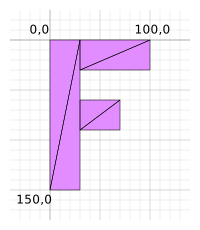
本文的代码与顶点缓冲区一文中的示例相似,但不再绘制一堆圆形,而是绘制一个 F 字母。为了减少数据量,我们会使用索引缓冲区(index buffer)来共享顶点。
我们将像 Canvas 2D API 那样工作在像素空间而不是裁剪空间。F 字母由 6 个三角形构成:
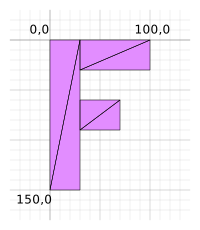
下面是 F 的顶点数据:
function createFVertices() {
  const vertexData = new Float32Array([
    // 左侧列
    0, 0,
    30, 0,
    0, 150,
    30, 150,

    // 顶部横杠
    30, 0,
    100, 0,
    30, 30,
    100, 30,

    // 中间横杠
    30, 60,
    70, 60,
    30, 90,
    70, 90,
  ]);

  const indexData = new Uint32Array([
    0,  1,  2,    2,  1,  3,  // 左侧列
    4,  5,  6,    6,  5,  7,  // 顶部横杠
    8,  9, 10,   10,  9, 11,  // 中间横杠
  ]);

  return {
    vertexData,
    indexData,
    numVertices: indexData.length,
  };
}
顶点数据在像素空间中,我们需要把它转换到裁剪空间。做法是将画布分辨率作为 uniform 传入着色器,并在着色器中进行数学变换。下面一步一步拆解:
struct Uniforms {
  color: vec4f,
  resolution: vec2f,
};

struct Vertex {
  @location(0) position: vec2f,
};

struct VSOutput {
  @builtin(position) position: vec4f,
};

@group(0) @binding(0) `var<uniform>` uni: Uniforms;

@vertex fn vs(vert: Vertex) -> VSOutput {
  var vsOut: VSOutput;

  let position = vert.position;

  // 将像素坐标转换为 0.0 到 1.0 的归一化值
  let zeroToOne = position / uni.resolution;

  // 从 0~1 转换到 0~2
  let zeroToTwo = zeroToOne * 2.0;

  // 从 0~2 转换到 -1~+1(裁剪空间)
  let flippedClipSpace = zeroToTwo - 1.0;

  // 翻转 Y 轴
  let clipSpace = flippedClipSpace * vec2f(1, -1);

  vsOut.position = vec4f(clipSpace, 0.0, 1.0);
  return vsOut;
}

@fragment fn fs(vsOut: VSOutput) -> @location(0) vec4f {
  return uni.color;
}
可以看到:顶点位置除以分辨率得到 01 的归一化值,乘以 2 后得到 02,再减去 1 得到 -1~+1 的裁剪空间值。但裁剪空间的 Y 轴向上,而 Canvas 2D 的 Y 轴向下,所以最后将 Y 乘以 -1。
我们只有位置这一个顶点属性,渲染管线配置如下:
const pipeline = device.createRenderPipeline({
  label: 'just 2d position',
  layout: 'auto',
  vertex: {
    module,
    buffers: [
      {
        arrayStride: (2) * 4, // (2) 个 float,每个 4 字节
        attributes: [
          {shaderLocation: 0, offset: 0, format: 'float32x2'},  // position
        ],
      },
    ],
  },
  fragment: {
    module,
    targets: [{ format: presentationFormat }],
  },
});
接下来为 uniform 数据创建缓冲区:
// color, resolution, padding
const uniformBufferSize = (4 + 2) * 4 + 8;
const uniformBuffer = device.createBuffer({
  label: 'uniforms',
  size: uniformBufferSize,
  usage: GPUBufferUsage.UNIFORM | GPUBufferUsage.COPY_DST,
});

const uniformValues = new Float32Array(uniformBufferSize / 4);

// 各个 uniform 值在 float32 数组中的偏移
const kColorOffset = 0;
const kResolutionOffset = 4;

const colorValue = uniformValues.subarray(kColorOffset, kColorOffset + 4);
const resolutionValue = uniformValues.subarray(kResolutionOffset, kResolutionOffset + 2);

// 颜色不会变化,所以初始化时设置一次即可
colorValue.set([Math.random(), Math.random(), Math.random(), 1]);
渲染时更新分辨率:
function render() {
  // ...

  // 在 JavaScript 端的 Float32Array 中设置 uniform 值
  resolutionValue.set([canvas.width, canvas.height]);

  // 将 uniform 值上传到 uniform 缓冲区
  device.queue.writeBuffer(uniformBuffer, 0, uniformValues);
}
透明画布与网格背景
为了让背景看起来像方格纸,我们需要让画布透明,并绘制一个 CSS 网格背景。方格纸每个小格为 10×10 像素,每 100×100 像素绘制一条更粗的线。
:root {
  --bg-color: #fff;
  --line-color-1: #AAA;
  --line-color-2: #DDD;
}
@media (prefers-color-scheme: dark) {
  :root {
    --bg-color: #000;
    --line-color-1: #666;
    --line-color-2: #333;
  }
}
canvas {
  display: block;
  width: 100%;
  height: 100%;
  background-color: var(--bg-color);
  background-image: linear-gradient(var(--line-color-1) 1.5px, transparent 1.5px),
      linear-gradient(90deg, var(--line-color-1) 1.5px, transparent 1.5px),
      linear-gradient(var(--line-color-2) 1px, transparent 1px),
      linear-gradient(90deg, var(--line-color-2) 1px, transparent 1px);
  background-position: -1.5px -1.5px, -1.5px -1.5px, -1px -1px, -1px -1px;
  background-size: 100px 100px, 100px 100px, 10px 10px, 10px 10px;
}
上面的 CSS 同时考虑了亮色和暗色模式。
之前所有示例都使用不透明画布。为了看到背景,我们需要做两处修改:
- 在
context.configure时将alphaMode设置为'premultiplied'(默认是'opaque'):
context.configure({
  device,
  format: presentationFormat,
  alphaMode: 'premultiplied',
});
- 在
GPURenderPassDescriptor中将清除值设为透明,即[0, 0, 0, 0]。因为默认clearValue就是0, 0, 0, 0,所以只需删除之前设置其他值的行即可:
const renderPassDescriptor = {
  label: 'our basic canvas renderPass',
  colorAttachments: [
    {
      // view: <- 渲染时填充
      // clearValue: [0.3, 0.3, 0.3, 1],  // 删除这行,默认就是透明
      loadOp: 'clear',
      storeOp: 'store',
    },
  ],
};
运行后可以看到 F 的大小与网格背景吻合:F 的顶点数据定义出宽 100 像素、高 150 像素的形状,起点在 (0,0),向右延伸到 (100,0),向下延伸到 (0,150)。
添加平移(Translation)
平移就是移动物体。为此,我们在 uniform 中增加一个 translation 字段,并在着色器中将它与顶点位置相加。
修改 WGSL:
struct Uniforms {
  color: vec4f,
  resolution: vec2f,
  translation: vec2f,
};

struct Vertex {
  @location(0) position: vec2f,
};

struct VSOutput {
  @builtin(position) position: vec4f,
};

@group(0) @binding(0) `var<uniform>` uni: Uniforms;

@vertex fn vs(vert: Vertex) -> VSOutput {
  var vsOut: VSOutput;

  // 加上平移量
  let position = vert.position + uni.translation;

  // 将像素坐标转换为 0.0 到 1.0 的归一化值
  let zeroToOne = position / uni.resolution;

  // 从 0~1 转换到 0~2
  let zeroToTwo = zeroToOne * 2.0;

  // 从 0~2 转换到 -1~+1(裁剪空间)
  let flippedClipSpace = zeroToTwo - 1.0;

  // 翻转 Y 轴
  let clipSpace = flippedClipSpace * vec2f(1, -1);

  vsOut.position = vec4f(clipSpace, 0.0, 1.0);
  return vsOut;
}

@fragment fn fs(vsOut: VSOutput) -> @location(0) vec4f {
  return uni.color;
}
接下来调整 uniform 缓冲区大小与偏移:
// color, resolution, translation
const uniformBufferSize = (4 + 2 + 2) * 4;
const uniformBuffer = device.createBuffer({
  label: 'uniforms',
  size: uniformBufferSize,
  usage: GPUBufferUsage.UNIFORM | GPUBufferUsage.COPY_DST,
});

const uniformValues = new Float32Array(uniformBufferSize / 4);

// 各个 uniform 值在 float32 数组中的偏移
const kColorOffset = 0;
const kResolutionOffset = 4;
const kTranslationOffset = 6;

const colorValue = uniformValues.subarray(kColorOffset, kColorOffset + 4);
const resolutionValue = uniformValues.subarray(kResolutionOffset, kResolutionOffset + 2);
const translationValue = uniformValues.subarray(kTranslationOffset, kTranslationOffset + 2);
然后在渲染函数中设置平移量:
const settings = {
  translation: [0, 0],
};

function render() {
  // ...

  // 在 JavaScript 端的 Float32Array 中设置 uniform 值
  resolutionValue.set([canvas.width, canvas.height]);
  translationValue.set(settings.translation);

  // 将 uniform 值上传到 uniform 缓冲区
  device.queue.writeBuffer(uniformBuffer, 0, uniformValues);
}
最后添加一个简单的 GUI 来调节平移:
import GUI from '../3rdparty/muigui-0.x.module.js';

// ...
const settings = {
  translation: [0, 0],
};

const gui = new GUI();
gui.onChange(render);
gui.add(settings.translation, '0', 0, 1000).name('translation.x');
gui.add(settings.translation, '1', 0, 1000).name('translation.y');
现在平移已经生效。如果将平移设置为 (200, 300),F 的左上角顶点就会出现在 (200, 300) 处。
核心优化要点提炼
-
使用索引缓冲区共享顶点
本文通过indexData将 6 个三角形所需的顶点从 18 个减少到 12 个。在更复杂的网格中,索引缓冲区可以大幅降低显存占用和顶点着色器的调用次数。 -
在着色器中完成坐标变换,避免每帧重传顶点数据
通过将resolution和translation作为 uniform 传入,像素坐标到裁剪空间的转换完全在 GPU 端完成。当平移量变化时,只需更新 uniform 缓冲区,无需重新创建或上传顶点缓冲区,显著减少 CPU-GPU 数据传输和内存带宽。 -
精确计算 uniform 缓冲区大小与偏移,遵循 WGSL 对齐规则
color是vec4f(16 字节),resolution与translation各是vec2f(8 字节),总计 32 字节。代码使用Float32Array子视图(subarray)管理偏移,并通过一次device.queue.writeBuffer批量上传所有 uniform 值,避免多次小数据传输带来的开销。这种布局同时满足 WGSL 对vec4f的 16 字节对齐要求。
术语检查:本文使用的是 WebGPU / WGSL 技术栈,而非 GLSL/WebGL。相关术语如 uniform buffer(统一缓冲区)、vertex buffer(顶点缓冲区)、index buffer(索引缓冲区)、clip space(裁剪空间)、alphaMode(透明混合模式)等均为 WebGPU 标准术语,与 GLSL/WebGL 中的对应概念有区别(例如 WGSL 使用 @group/@binding 而非 GLSL 的 layout 限定符)。文中均保持准确用法。
本文基于 WebGPU 官方教程翻译整理,仅供学习参考。